How-To Guide & Walkthrough
Master kitchen organization, modular recipe management, and automated meal planning with Tamiana
Getting Started with Tamiana
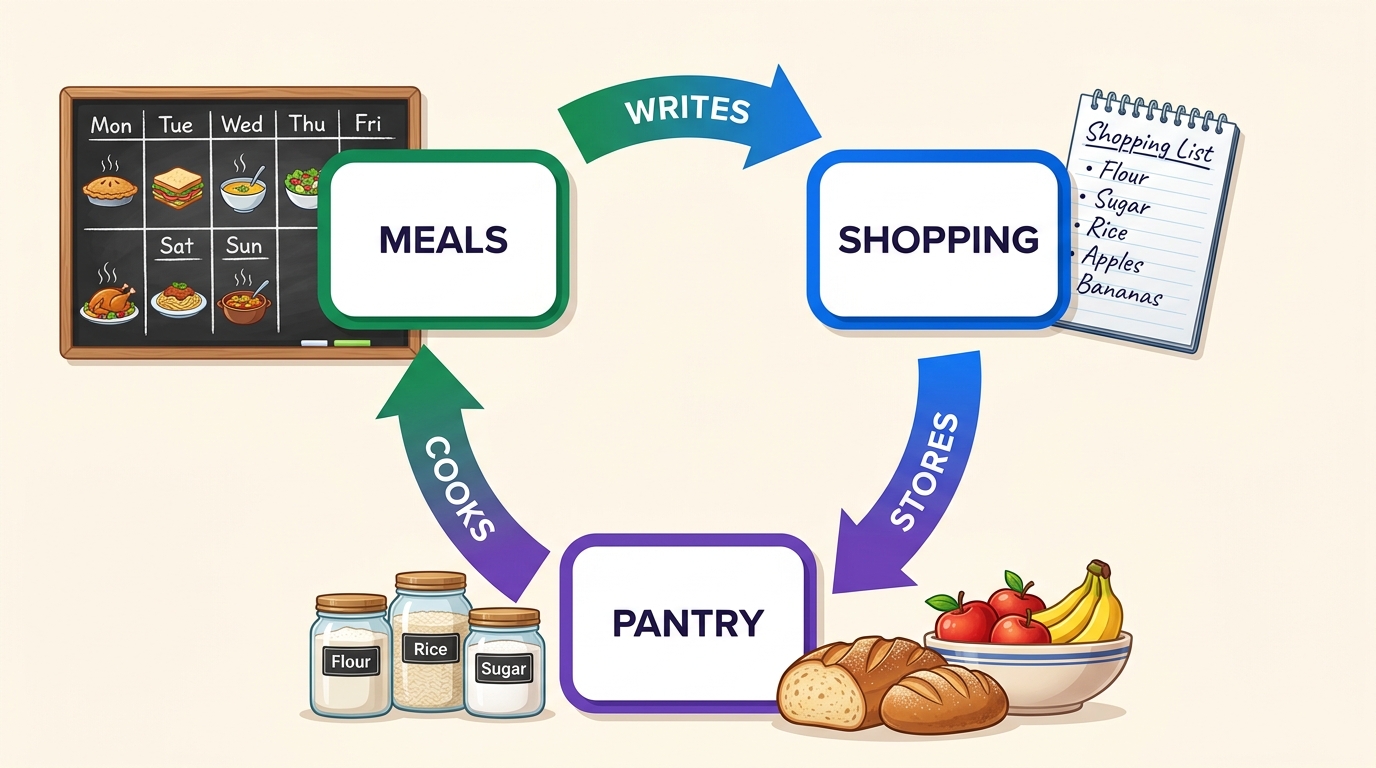
Welcome to Tamiana! Tamiana connects your kitchen pantry, modular recipes, and weekly meal schedule into a continuous, automated stewardship loop.
Interactive Guided Tour
Take an interactive walkthrough that highlights key areas of the application and explains how everything connects.
Experience a quick visual tour of the primary modules directly inside your browser.
You can re-launch the interactive tour at any time whenever you need a quick refresher.
Demand-Driven Quick Start
The quickest way to start: configure household rules, skip upfront pantry counting, and let meal demand build your inventory naturally.
Add family members and assign dietary preferences in Settings so the planner tailors safe, compliant meals.
Go to Meal Plan and click Generate Meal Plan using the full cookbook catalog (or pick favorite dishes).
Open your Shopping List, scan your cupboards, and check off items or quantities you already have on hand.
Buy missing items and tap Complete Shopping. Tamiana transfers your groceries and remembers extra leftover amounts in your Pantry for future meals.
Cookbook & Recipe Discovery
The Cookbook is your culinary command center for browsing community recipes, managing your personal household collection, and filtering by what you can cook right now.
Searching & Filtering
Multi-dimensional search filters to find dishes by title, specific ingredients, or kitchen gear.
Toggle between "All Recipes" (public catalog) and "My Cookbook" (household collection).
Type dish names (e.g. "Burger", "Tacos") or search specific ingredients you need to use up (e.g. "Chicken Breast", "Spinach").
Instantly isolates recipes where you currently have 100% of the required ingredients in your active pantry stock.
Filter out recipes that require appliances you don't own in your settings.
Adding to Meal Plan
Connecting a recipe to your meal calendar triggers an automated inventory & grocery sync.
Click the button on any recipe card or from the recipe detail page header.
Pick your target day (e.g. Wednesday Dinner) and adjust the serving count.
- Schedules on your weekly Meal Plan calendar.
- Audits active Pantry stock for all required ingredients.
- Calculates missing amounts and adds them directly to your Shopping List.
Interactive Servings Scaling & Batch Floors
Dynamically adjust portion sizes without doing manual math or conversion guesswork.
Click on any recipe card to open the detail view.
Tap + or − next to the Servings badge in the header.
All ingredient weights, volumes, and fractions recalculate in real-time.
If a recipe contains indivisible discrete ingredients (e.g. 1 whole egg or 1 can of tuna), the portion controls bottom out at the minimum batch size so you never get impossible culinary fractions like 0.25 egg.
When you cook a minimum batch dish for fewer people, Tamiana's Meal Planner automatically calculates the surplus portions and schedules them as Leftovers for subsequent meals, preventing food waste without complicating recipe prep.
Distraction-Free Cooking Mode
A high-contrast, full-screen step guide designed for active cooking at the counter.
Click "Start Cooking" on any recipe page.
Highlights only what ingredients and cookware you need for the active step.
Prevents your tablet or phone screen from sleeping while cooking.
Sharing & Recipe Privacy Controls
You have total control over who sees your recipes.
All recipes you create are private to your household members only.
Click Share on any recipe to copy a direct link to send to friends or family.
Open the recipe options menu () and select "Release to Tamiana" to publish to the public catalog. For recipes imported from external URLs, use them as a culinary base and apply your own modifications before releasing.
Creating & Editing Recipes
Build modular culinary recipes from scratch using the Recipe Builder.
Recipe Overview Details
Set up titles, descriptions, portions, and timing.
Add a clear dish name and a brief summary of the recipe.
Assign a course type (Main, Side, Dessert, Starter, Snack, Drink, Sauce), default servings (e.g. 4), and prep/cook times in minutes.
Ingredients & Smart Containers
Standardized units, auto-indexing for custom items, and smart container mechanics.
Search from Tamiana's standard database of indexed food items.
If an ingredient isn't recognized, simply type it in! Tamiana accepts it immediately and our platform indexes it to complete the full profile (allergens, default shelf life, expiration rules, storage zones).
Specify units and package volumes (e.g. 400g can, 500ml bottle, 1kg bag, cups, grams).
- Single-Use Packaging & Indivisible Items (Cans, Packets, Eggs, Tortillas): Hermetically sealed packaging (cans, tins, packets, sachets) and structurally indivisible items (eggs, wraps) ceil upon cooking (e.g. 0.5 can → 1 can) and establish minimum batch floors.
- Divisible Produce & Multi-Use Containers (Avocados, Onions, Bottles, Jars, Bags): Naturally divisible whole produce and continuous bulk containers track partial fractions (e.g. using 0.5 avocado leaves half an avocado in the fridge; using 30ml olive oil leaves 470ml in the bottle).
Attaching Modular Sub-Recipes
Nest scratch sauces, dressings, or spice mixes inside master meals.
Click the sub-recipe button in the ingredients section of the builder.
Choose an existing scratch recipe (e.g. "Homemade Tomato Sauce") or draft a new one.
When planning meals, you can toggle between cooking the sub-recipe from scratch or swapping it for a store-bought jar without breaking meal plan math.
Steps & Kitchen Tool Linking
Structured steps feed directly into Cooking Mode for step-by-step guidance.
Click Add Step and enter clear culinary instructions.
Tag required tools (e.g. skillet, blender) and specific ingredients used in that step so Cooking Mode presents them at the right time.
Photos & AI Themed Placeholder Images
Every recipe can display a real food photo or an AI illustration rendered to match your chosen aesthetic.
Upload your own high-resolution food photography (JPG/PNG).
Click Generate AI Image to produce a custom dish placeholder matching your theme (Lifelike, 3D Render, Comic Book, Claymation).
Pantry Inventory Management
The Pantry Dashboard gives you live visibility into what's in your cupboards, fridge, freezer, and spice racks so you can monitor provisions, track food waste, and audit consumption history.
60-Second Setup Wizard
Stock your virtual pantry with common household essentials in under a minute.
Navigate to the Pantry Setup Wizard.
Browse visual category tiles (Grains, Oils, Spices, Baking, Condiments) and tap items you have in stock.
Click Save Pantry Items to add all selected essentials simultaneously.
Logging & Updating Lots
Maintain accurate counts, convert measurement units, and receive expiration date reminders.
On the Pantry page, click the green Add Item () button.
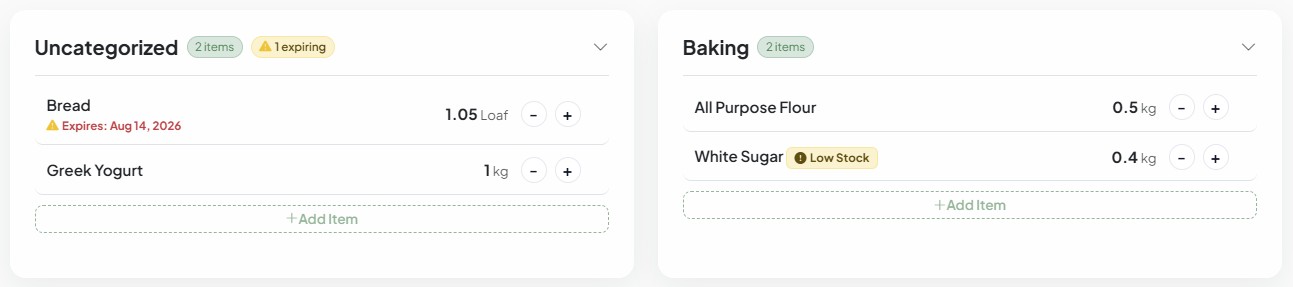
Assign storage zones (Pantry, Fridge, Freezer, Spices), quantities, and optional expiration dates.
Click directly on any item's unit (e.g. slices → units, g → kg, cans, bottles) to open the unit modal. Use Convert via Ratio for automated culinary calculations or switch to Set Value to directly set new quantities and container package sizes.
Tamiana highlights items expiring within 7 days for priority planning.
History Ledger & Waste Tracking
See exactly how much of any ingredient your household is eating vs. throwing away.
On the Pantry page, click the header options menu () and choose "Pantry History Ledger" (or visit Pantry History).
Select any ingredient (e.g. "Milk", "Spinach", "Chicken") in the left filter to unlock interactive volume charts.
The Transaction Volumes by Type chart breaks down quantities Cooked in Meals vs. Discarded / Expired vs. Purchased over any date range.
Restoring Accidentally Deleted Items
Easily recover accidentally tossed or deleted pantry lots from the history archive.
Go to the Pantry History Ledger.
Find your deleted lot in the ledger and click Restore to immediately return it to active stock with its original quantity and expiration intact.
Meal Planning & Menu Scheduling
The Meal Plan turns your pantry inventory and recipes into an automated weekly routine tailored to your household's schedule.
Active Days & Meal Times
Configure exactly which days of the week and meal slots should be automatically planned.
Navigate to Settings → Meal Plan Automation.
Check off your desired meal times (Breakfast, Lunch, Dinner) across Monday through Sunday in the grid.
Unchecked slots remain empty so you can eat out or plan ad-hoc meals without automated generator overrides.
Optional Meal Time Limits
Cap cooking times for busy weeknights so the planner only selects fast recipes.
When a meal slot is checked in Settings, a duration input box appears next to it.
Enter maximum prep + cook duration (e.g., 30 mins for busy weeknights, leaving weekends blank for scratch cooking).
Auto-generation strictly ignores recipes exceeding your time threshold for that slot.
Split Household Schedules (Individual Schedules)
Accommodate family members who have different work schedules, eat separate lunches, or follow unique diets.
In Meal Plan Automation, click on any member's dedicated tab alongside Household Default.
Check "Customize meal plan schedule for [Member]" to decouple them from the household default.
Tamiana generates tailored meals for their active days while combining all grocery ingredients into a single unified shopping list.
One-Click Auto Generation
Let Tamiana generate a balanced menu for your active schedule in one click.
On the Meal Plan page, click the green "Generate Meal Plan" button.
Prioritizes recipes using expiring perishables while respecting household dietaries and time limits.
Slot Selection & Suggestions
Customize individual meal slots with precision control.
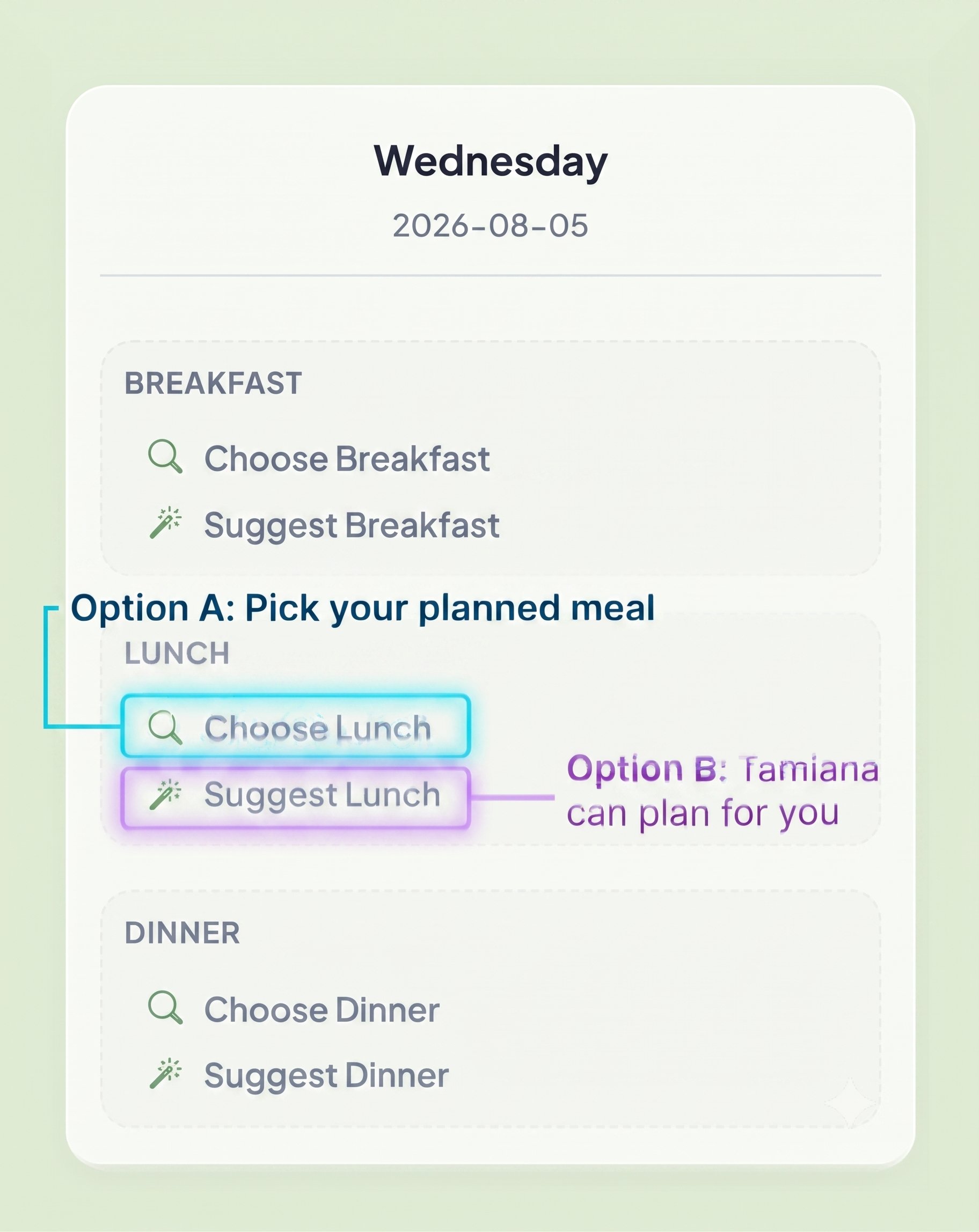
Click "Choose [Meal]" on any slot to browse your cookbook.
Click "Suggest [Meal]" for a smart recommendation utilizing current stock.
Cook & Deduct Inventory
Keep pantry counts accurate with automated post-cooking deductions.
Click Complete Cooking when finished preparing a meal.
Quantities used are automatically deducted from active pantry stock.
Weekly Review & Leftovers
Wrap up the week, log leftovers, and reset on the Weekly Review page.
Review prepared meals and clear finished calendar slots.
Mark leftovers to schedule them into upcoming lunches or dinners.
Smart Shopping List & Restock
The Shopping List prevents duplicate purchases and automatically restocks your pantry inventory upon checkout.
Missing Items Auto-Sync
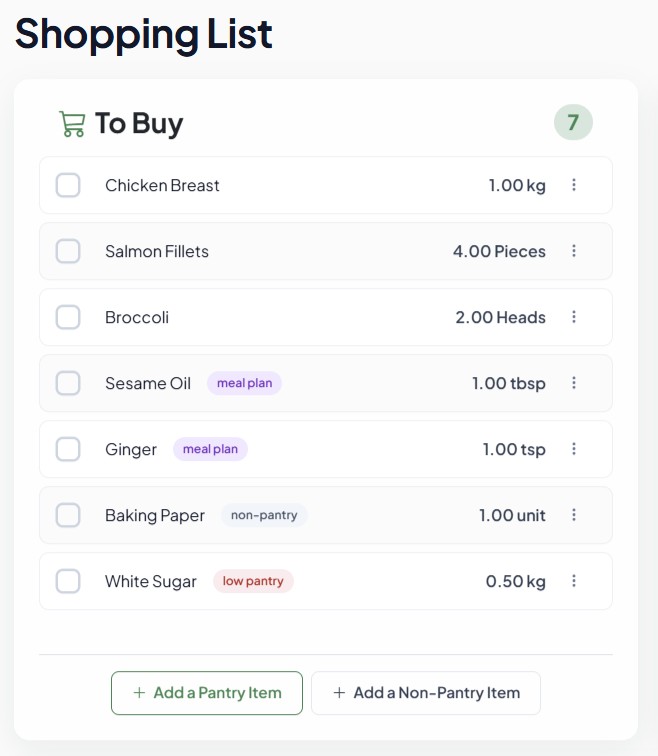
No manual list writing—your meal plan generates it automatically.
Missing quantities across all planned meals are calculated against active pantry stock.
Grouped by supermarket section (Produce, Dairy, Meat, Pantry, Bakery, Spices).
Adding Manual Groceries
Easily add non-recipe groceries, household supplies, and snacks.
Click the button at the top of the Shopping List page.
Type in supplies (e.g. "Dish Soap", "Coffee Beans"), category, quantity, and unit.
In-Store Household Sync
Shop collaboratively without buying duplicate items.
Tap items on your mobile device as you place them into your cart.
All household members see updates live across their devices.
Auto-Restock into Pantry
Seamlessly transfer purchased groceries directly into active inventory.
After checkout, tap the green button at the top of your list.
All checked items transfer directly into your active Pantry with correct quantities.
Household & Account Settings
Configure your household profile, dietary constraints, cookware inventory, and visual aesthetics on the Settings page.
Building Your Household
Set up every member living in your home for synchronized planning and collaboration.
In Settings → Household Management, type a member's name and click Add Member.
Invite co-shoppers via email so they can log in from their own phones, or keep limited in-app profiles for children.
Click any member's avatar icon to pick an avatar that reflects their personality.
Dietaries & Allergens
Ensure recipe recommendations are compliant and safe for everyone at home.
In Settings → Dietary Restrictions, check off restrictions including Vegetarian, Vegan, Gluten Free, Dairy Free, and Nut Free.
Use the member tabs to customize dietary restrictions per person so the auto-planner tailors recommendations to accommodate all household members.
Kitchen Equipment
Match recipes to the appliances you actually own in your kitchen.
Check off appliances you own (Slow Cooker, Food Processor, Dutch Oven, Cast Iron Pan, Immersion Blender).
The Cookbook uses this checklist to highlight feasible recipes.
Visual Theme Selection
Personalize the visual aesthetic of your interface and AI-generated recipe cards.
Open Theme Customization in Settings.
Select between Lifelike Photo, 3D Rendered, Comic Book, or Claymation styles.
Want to learn more about the mission and philosophy behind our platform?
Read About Tamiana's Mission